67834399CC708646102FF78944E110NN.xyz
Setting Up A Print Server in Fedora Server 44
Converting a "dumb" printer into a network-shared printer using CUPS
I have this old hand-me-down EPSON EcoTank L120 inkjet printer plugged in to my desktop computer. It is a "dumb" printer without wireless connectivity or other modern fancy features. Whenever I want to print something, I have to turn the PC on, send the document if it's in a different device, and finally print it.
These days, I am not the only one using the printer. I frequently get asked to print stuff for other people, and it sometimes take me out of focus when doing something that requires my full attention, i.e., coding. It is also inconvenient when I'm away from my desk, as I either have to instruct them step-by-step how to print a document, or just do it myself. Finally, I usually use different devices. I work on my laptop and review documents on Android phones/tablets. Turning the PC on just to print a single A4 page seems too inefficient.
I believe that I can make this workflow better (and keep others from distracting me) so I decided to set up a simple print server on one of my homelab nodes using CUPS.
Equipment & Software
My set up has the following specifications:
| Homelab Node | Nereus (Lenovo G50-70) |
| Operating System | Fedora Linux 44 (Server Edition) |
| Printer | EPSON EcoTank L120 |
CUPS
CUPS (Common UNIX Printing System) is a print spooler and scheduler for Linux initially developed by Apple for iOS, iPadOS, and MacOS. It is now maintained by OpenPrinting, an organization part of the Linux Foundation. It is the standard software for printing in Linux.
Gutenprint
gutenprint-cups provide drivers for many printer brands such as Canon, EPSON, HP, and more. You can see a list of supported printers here.
Installation & Configuration
First, I updated the system packages to make sure that they are on the latest version.
sudo dnf upgrade
# restart the server to apply updated packages' changes
reboot
I then installed CUPS and other dependencies that will be used. The gutenprint-cups package already has the EPSON L120 printer driver so I can enable the CUPS service after installation. I also enabled the avahi-daemon service to enable auto-discovery of our print service in our local network.
sudo dnf install -y cups cups-filters gutenprint-cups avahi
sudo systemctl enable --now cups.service avahi-daemon.service
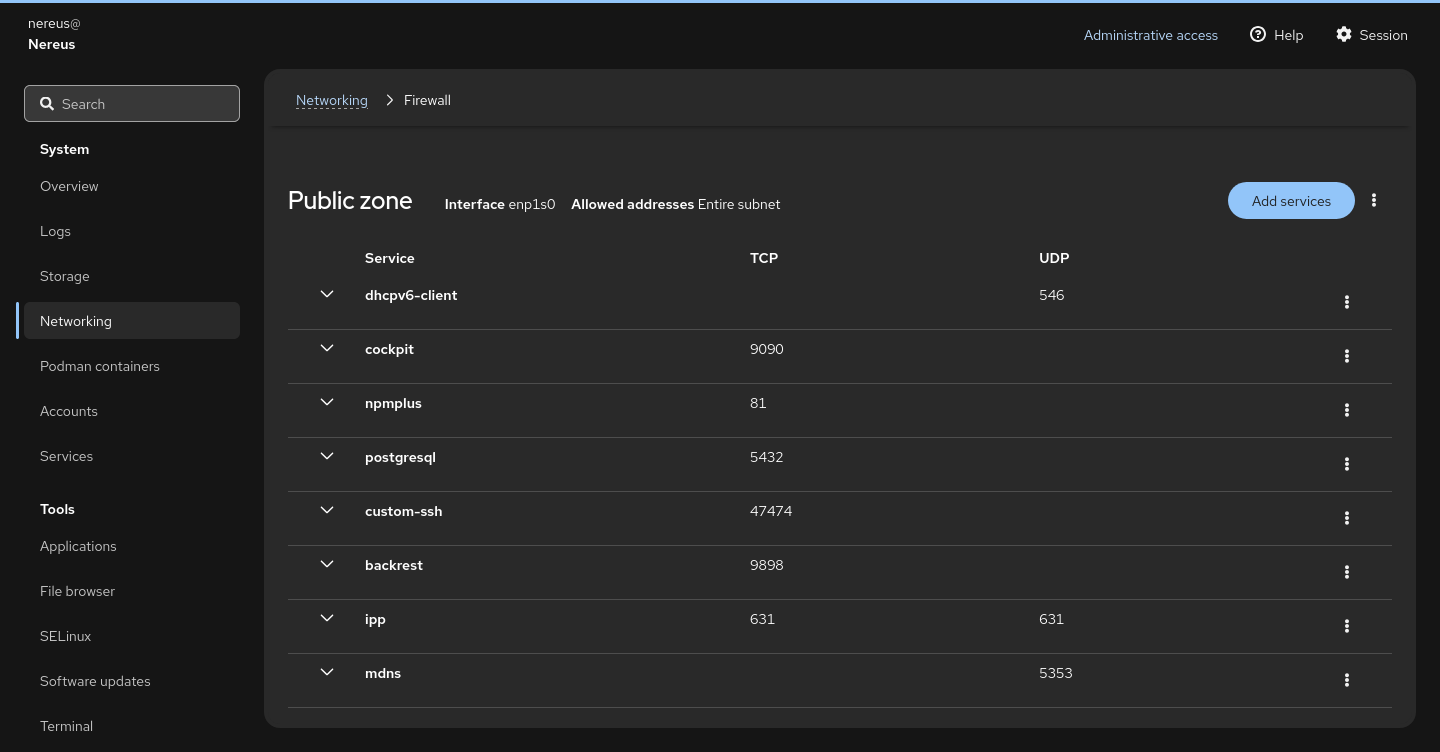
The print service is now running on port 631, but I cannot remotely access it right now due to the CUPS configuration and the firewall disallowing incoming connections. I logged in to the Cockpit dashboard (preinstalled and enabled by default in Fedora Servers) and navigated to the Networking tab. I clicked the "Edit rules and zones" button and added the new services:
ippmdns
I then allowed remote administration and printer sharing on CUPS by running the following command:
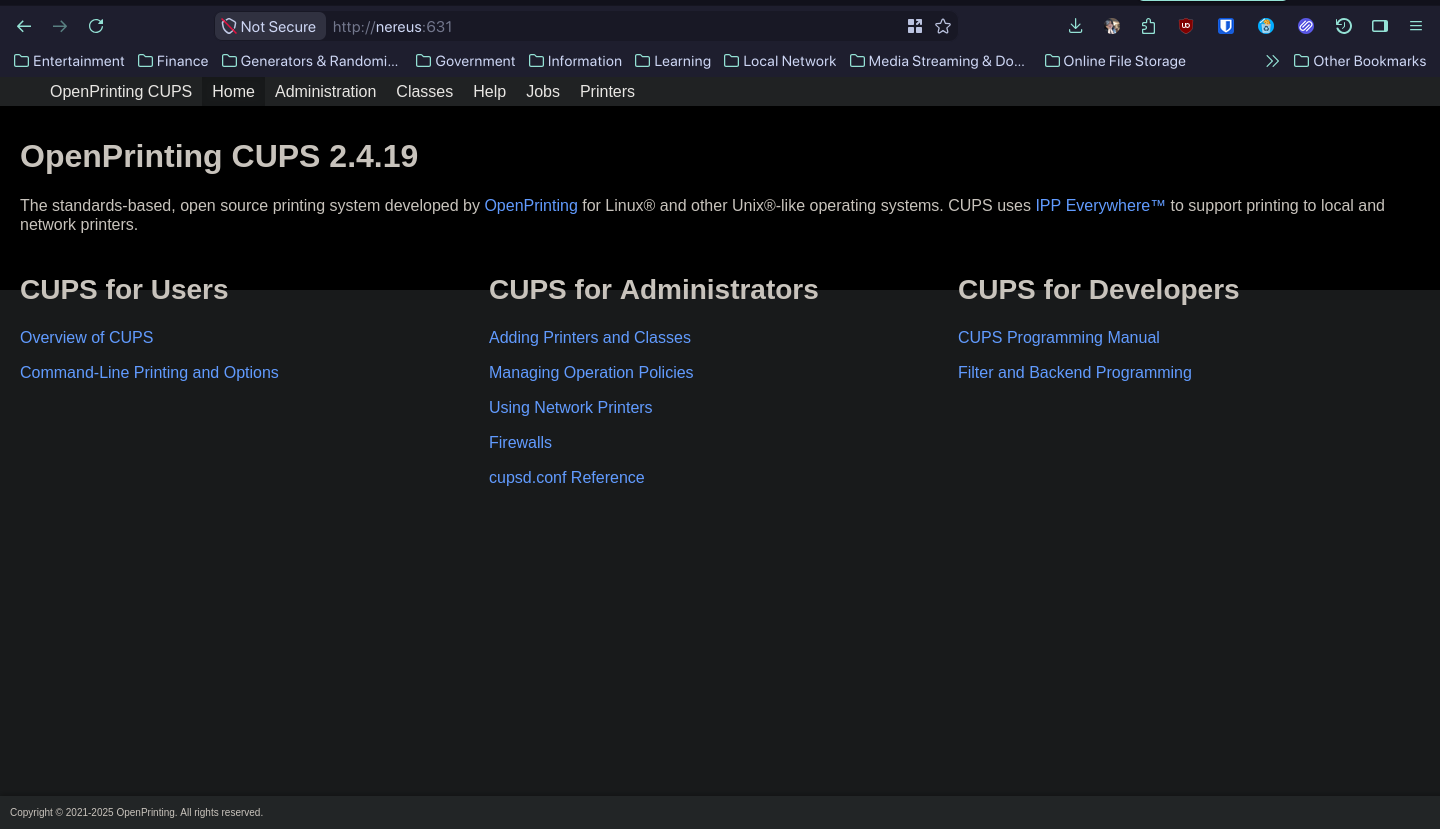
sudo cupsctl --remote-admin --remote-any --share-printersWhen visiting http://nereus:631/, I am now greeted by the CUPS homepage.
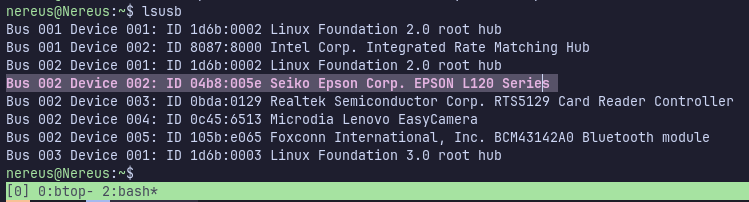
Before adding the printer to CUPS, I verified that the system detects the printer using lsusb.
Switching to the Administration page in https://nereus:631/admin, I logged in using the system administrator credentials. Under Printers, I selected "Add Printer" and selected my EPSON L120 Series printer.
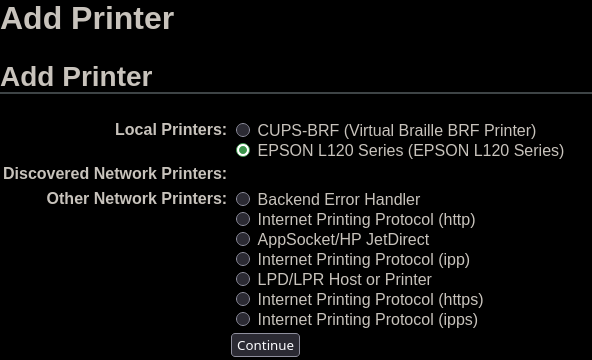
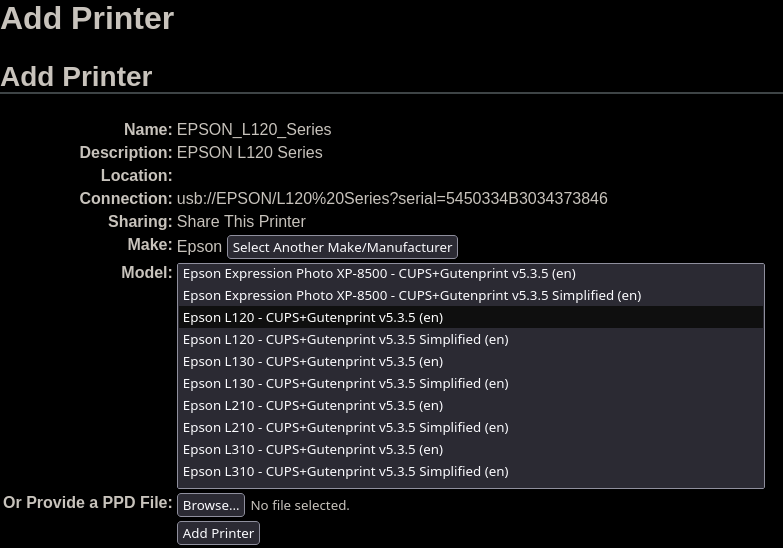
Clicking "Continue" shows the next form asking for the printer model. I selected Epson L120 - CUPS+Gutenprint v5.3.5 (en). I used to use a PPD file from endlessm/epson-inkjet-printer when I was using Arch Linux, but I guess I don't have to do it in Fedora Server.
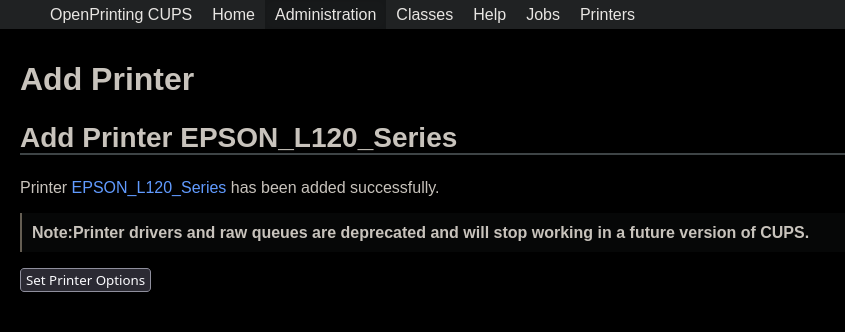
Finally, the printer has been added.
Going to the "Printers" tab and selecting the EPSON_L120_Series queue, I printed a test page and it successfully performed the operation.
Using the Printer from Other Devices
The server is now successfully set up. I tried using the printer on two client devices:
- Desktop PC running Fedora Workstation 44
- HONOR X6a Smartphone running MagicOS 8/Android 14
I don't have a Windows installation quickly available, so I cannot test it there. I only have it installed in an external hard drive as a last resort. Although you can use the CUPS printing system installation like any other network-based printers.
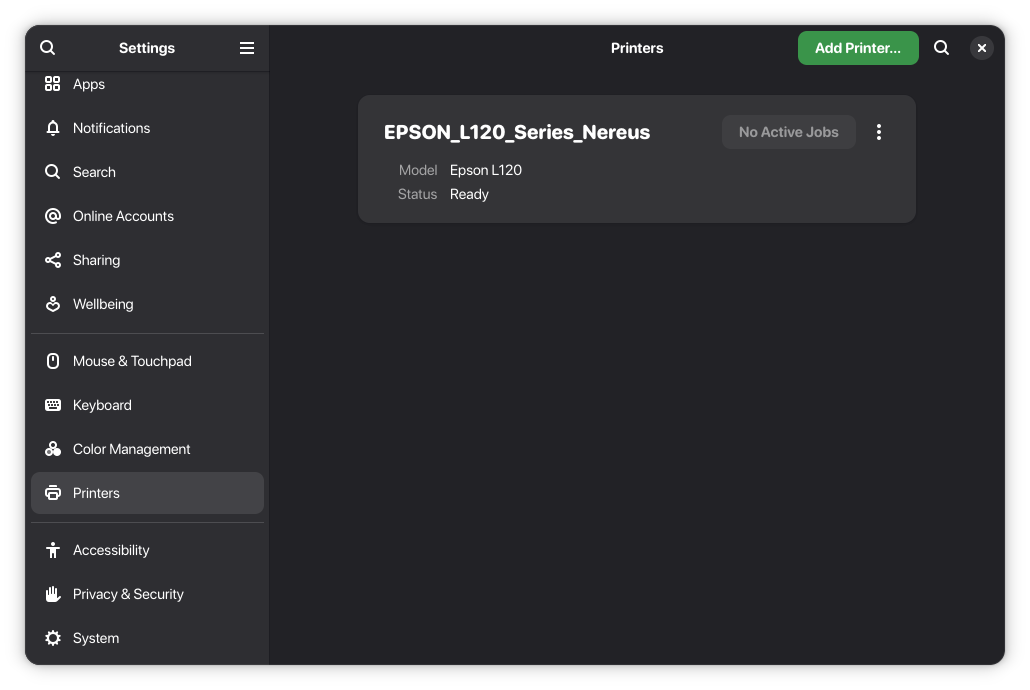
Setting up the printer in Fedora Workstation is straightforward. I opened GNOME Settings, clicked on the Printers tab. I can see that the printer is already detected, since I enabled Avahi mDNS earlier.
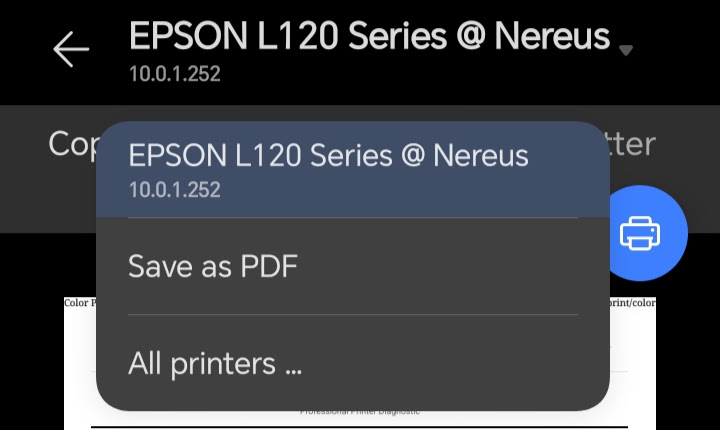
On smartphones, mDNS makes setup easy, as printing on Android is streamlined as well. When I select Print on a file, my smartphone detects the print server, allowing me to send a print job to it like any modern printers do.